Run details
Select a workflow run from the Runs list to open a run details page.
The top of the page contains basic run details and a progress overview for an at-a-glance view of the run's status:
- View and copy the run ID, pipeline name and repository, pipeline work directory, compute environment, and launch date.
- Select the star icon to favorite the run and find it more easily via a filter view in the runs list later.
- Use the options menu to apply labels, relaunch, resume, or delete the run, save the run as a new pipeline, or publish a new pipeline version (if the run was launched from an unnamed draft).
Select the tabs below the workflow run progress bar to view further run details:
- Tasks: View the status and progress of pipeline tasks and processes, including extensive task details.
- Logs: View and download the pipeline run's execution logs.
- Metrics: View resource metrics for the run.
- Configuration: View Nextflow configuration files and the resolved configuration used for the run.
- Inputs: View pipeline parameters used by the run, including their lineage records.
- Outputs: View files produced by the run, including reports and lineage records for every published file.
- Containers: View the details of containers used in the run, if any.
- Run Info: View details about the run, infrastructure, executor, and lineage.
Data lineage is made available on request. Please contact your Seqera account manager.
Lineage-aware fields and tabs only display data when the run was executed with data lineage enabled. There are three ways to enable lineage:
- Settings > Lineage. A workspace maintainer configures the cloud credentials, region, and (optionally) bucket name where lineage records are stored. Select Enable lineage by default to make the launch form lineage toggle default to on for every run launched in the workspace.
- Launch form toggle. When launching a pipeline, toggle lineage on or off for the individual run.
- Nextflow configuration. Set
lineage.enabled = truein your pipeline's Nextflow config.
See Getting started with data lineage for the underlying lineage data model.
- Tasks
- Logs
- Metrics
- Configuration
- Inputs
- Outputs
- Containers
- Run Info

The cards at the top of the Tasks tab provide a real-time status of all tasks in the pipeline run:
- Pending: The task has been created, but not yet submitted to an executor.
- Submitted: The task has been submitted to an executor, but is not yet running.
- Running: The task has been launched by an executor (the precise definition of "running" may vary for each executor).
- Cached: A previous (and valid) execution of the task was found and used instead of executing the task again. See Cache and resume.
- Succeeded: The task completed successfully.
- Failed: The task failed.
- Aborted: The task was submitted, but the run was cancelled or failed before the task could begin.
Processes
The Processes panel displays the status of each process in a pipeline run. In Nextflow, a process is an individual step in a pipeline, while a task is a particular invocation of a process for given input data. In the panel, each process is shown with a progress bar indicating how many tasks have been completed for that process.
The progress bar is color-coded based on task status (created, submitted, completed, failed).
Select a process to navigate to the Tasks panel and filter the table contents by the selected process.
Tasks
The Tasks panel shows all the tasks that were executed in the run, including the following task details:
| Label | Description |
|---|---|
| task_id | Unique identifier for the task. |
| process | Process name. |
| tag | User-defined label or tag associated with the task. |
| hash | Nextflow task hash value. |
| status | Task execution status (e.g., COMPLETED, FAILED, RUNNING). |
| attempt | Number of execution attempts for this task (for retry logic). |
| exit | Task exit code. |
| container | Container image used to execute the task. |
| native_id | Native job ID assigned by the executor (e.g., cluster job ID). |
| submit | Timestamp when the task was submitted for execution. |
| duration | Total execution time for the task. |
| realtime | CPU wall time the task actually ran. |
| % cpu | Percentage of CPU utilization during task execution. |
| % mem | Percentage of memory utilization during task execution. |
| peak_rss | Peak resident set size (physical memory usage). |
| peak_vmem | Peak virtual memory usage. |
| rchar | Number of characters read from storage. |
| wchar | Number of characters written to storage. |
| vol_ctxt | Number of voluntary context switches. |
| inv_ctxt | Number of involuntary context switches. |
| lineage_id | Lineage ID (LID) of the task's TaskRun record. Populated only when lineage tracking is active for the run. Select the LID to navigate to the lineage record. |
Use the search bar to filter tasks with substrings in the table columns such as process, tag, hash, and status. For example, if you enter succeeded in the Search task field, the table displays only tasks that succeeded.
Task details
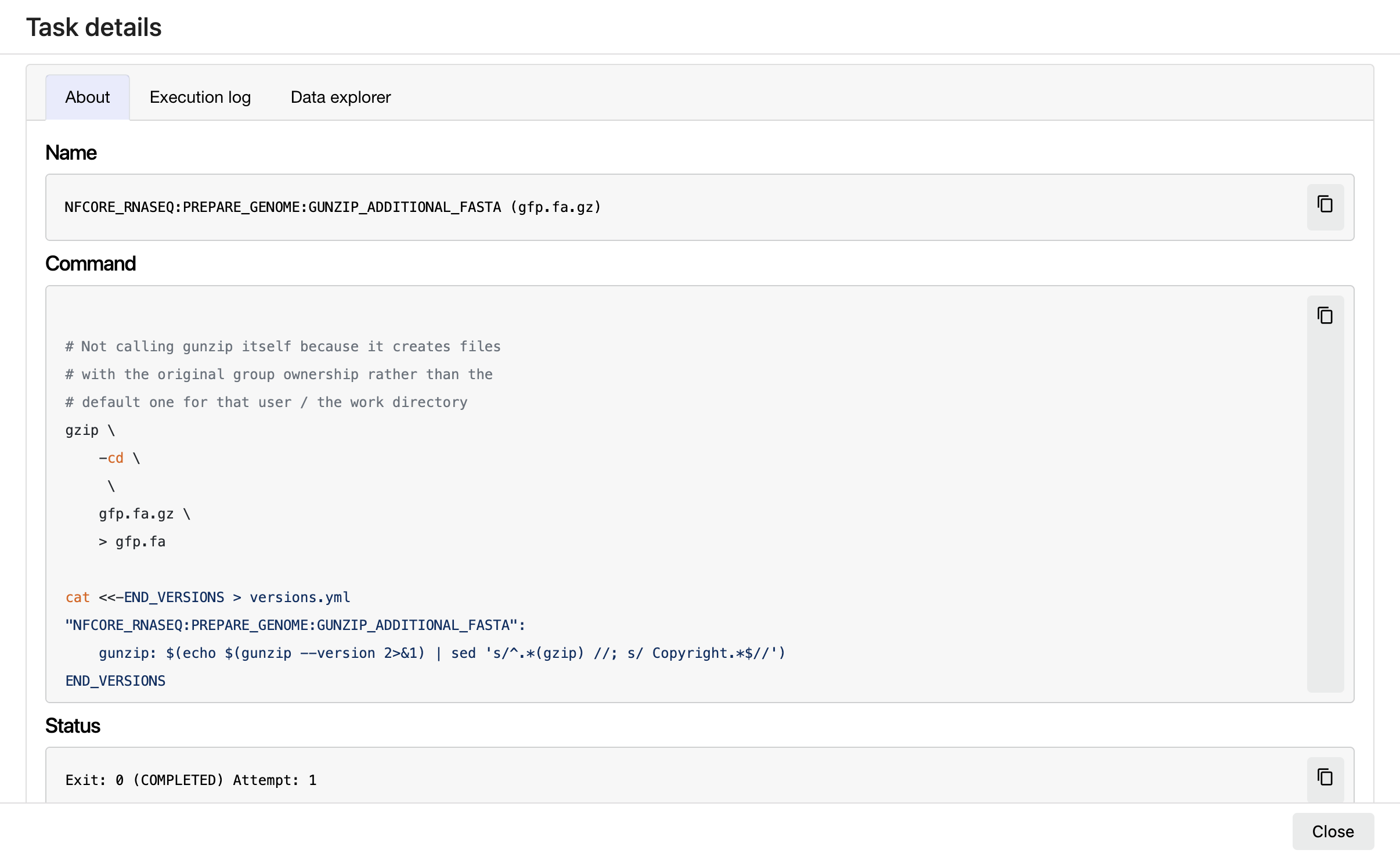
Select a task in the task table to open the Task details dialog. The dialog has the following tabs:
- About
- Metrics
- Execution log
- Data Explorer
- Container
If lineage is enabled for the run, the About tab content includes Inputs and Outputs tabs.
The Inputs and Outputs tabs show every input or output consumed by the task, including the name, its lineage type (Collection or Path), the source path, the lineage labels assigned to it, and the lineage ID of the corresponding lineage record. Select a name to open the file in Data Explorer. Select a lineage ID or label to navigate to that lineage record.
About
- Name: Process name and tag.
- Status: Exit code, task status, attempts.
- Native ID: Unique identifier assigned by the underlying execution executor to a specific job.
- Command: Task script, defined in the pipeline process.
- Environment: Environment variables supplied to the task.
- Work directory: Directory where the task was executed.
- Inputs: File inputs to the task and associated lineage data.
- Outputs: File outputs from the task and associated lineage data.
- Upstream: Links to related upstream tasks.
- Downstream: Links to related downstream tasks.
Metrics
-
Execution time: Metrics for task submission, start, and completion time:
Label Description submitted Task submission timestamp. started Task execution timestamp. completed Task completion timestamp. total duration Time elapsed from task submission to completion, including scheduling time. script execution time Task script execution time. -
Requested resources: Metrics for the resources requested by the task:
Label Description container image Container image name used to execute the task. queue The queue that the executor used to run the process. cpus Number of CPUs requested for task execution. memory Memory requested for task execution. disk space Disk space requested for task execution. time limit Time requested for task execution. executor The Nextflow executor used for this task. cloudZone The cloud zone (region) where the task was executed. machineType The virtual machine type used for this task. priceModel The price model used to calculate the task computation cost. estimated cost The estimated cost to compute this task. -
Used resources: Metrics for the actual resources used by the task:
Label Description pcpu Percentage of CPU used by the task. rss Real memory (resident set) size of the task. peakRss Peak of real memory used. vmem Virtual memory size of the task. peakVmem Peak of virtual memory used. rchar Number of bytes the task read, using any read-like system call from files, pipes, tty, etc. wchar Number of bytes the task wrote, using any write-like system call. readBytes Number of bytes the task read directly from disk. writeBytes Number of bytes the task originally dirtied in the page-cache (assuming they will go to disk later). syscr Number of read-like system call invocations that the task performed. syscw Number of write-like system call invocations that the task performed. volCtxt Number of voluntary context switches. invCtxt Number of involuntary context switches.
Execution log
The Execution log tab provides a real-time log of the selected task's execution. Task execution and other logs (such as stdout and stderr) are available for download if they are still available in your compute environment.
Data Explorer
If the pipeline work directory is in cloud storage, this tab shows a Data Explorer view of the task's work directory location with the files associated with the task.
Container
This tab contains the image and build details of the container used to execute the task:
| Label | Description |
|---|---|
| Target image | The container image used to execute the workflow task. |
| Source image | The container image specified in the workflow configuration, if available. |
| Request ID | The unique request ID associated with the container. |
| Request time | The timestamp when the container request was made. |
| Build ID | The unique build ID assigned when the container was provisioned. |
| Mirror ID | The unique mirror ID assigned when the container was copied between repositories. |
| Scan ID | The unique scan ID from the vulnerability security scan of the container. |
| Cached | Indicates whether the container was previously built in an earlier request. |
| Freeze | Indicates whether the container was provisioned for persistent storage using Wave freeze mode. |
The Logs tab contains a window with the Nextflow execution log console output. Select Download log files to download:
- Nextflow console output, in TXT format.
- Nextflow log file, in LOG format.
- Execution timeline graph, in HTML format.

The cards at the top of the Metrics tab display a real-time summary of the resources used by the run.
Wall time
Wall time is the duration of the entire workflow run, from submission to completion. While the run is in progress, wall time is a measure of the time elapsed since run start.
CPU time
CPU time is the total CPU time used by all tasks, measured in CPU hours. It is based on the CPUs requested, not the actual CPU usage. The CPU time of an individual task is computed as follows:
The runtime of an individual task is computed as follows:
See also: cpus, start, and complete in the task table.
Memory
Memory is the total memory used by all tasks. It is based on the memory requested, not the actual memory usage.
See also: peakRss in the task table.
Data read and write
Data read and Data write are the total amount of data (in GB) read from and written to storage.
See also: readBytes and writeBytes in the task table.
Estimated cost
An estimated cost for the run. See Seqera cost estimate for details.
Load
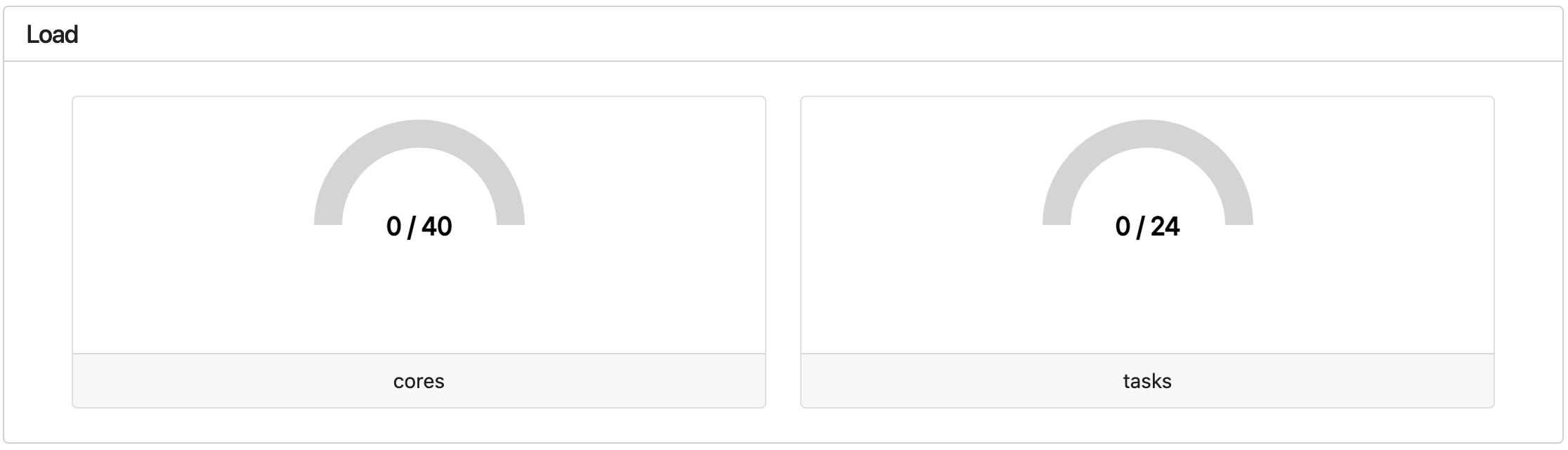
The Load panel displays the current number of running tasks and CPU cores vs the maximum number of tasks and CPU cores for the entire pipeline run.
These metrics measure the level of parallelism achieved by the pipeline. Use these metrics to determine whether your pipeline runs are fully utilizing the capacity of your compute environment.
Utilization
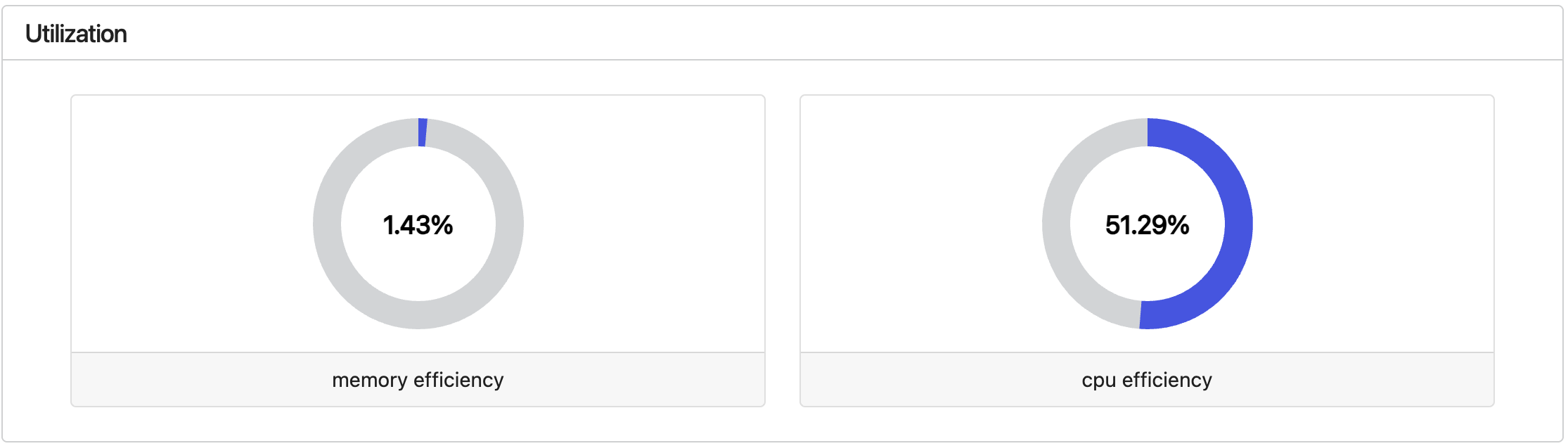
The Utilization panel displays the average resource utilization of all tasks that have completed successfully in a pipeline run. The CPU and memory efficiency of a task are computed as follows:
See also: pcpu, cpus, peakRss, and memory in the task table.
These metrics measure how efficiently the pipeline is using its compute resources. Low utilization indicates that the pipeline may be over-requesting resources for some tasks.
Interactive resource plots
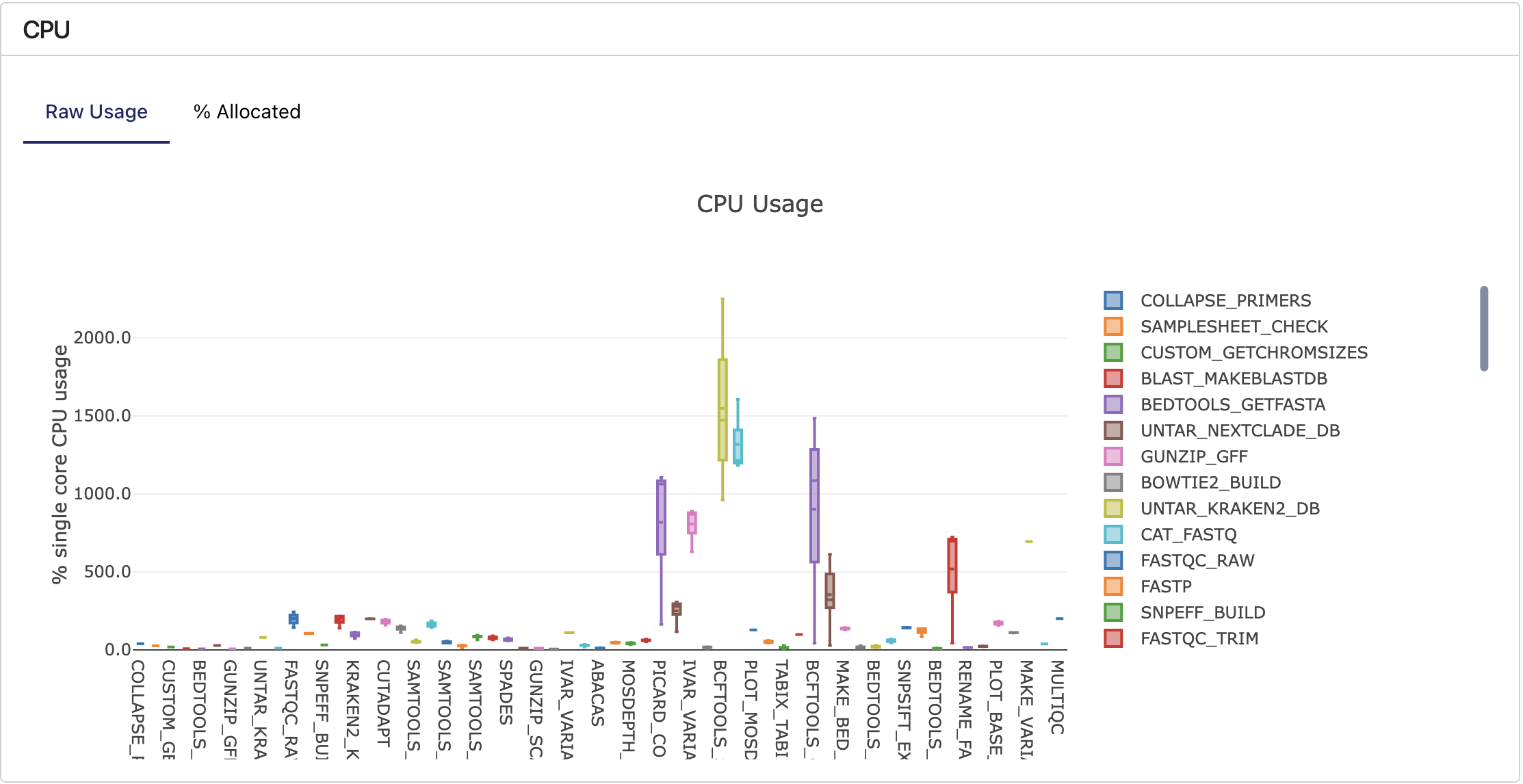
The CPU, Memory, Job duration, and I/O interactive plots visualize detailed resource usage, grouped by process. These metrics include succeeded and failed tasks. Use these plots to quickly inspect a pipeline run to determine the resources requested and consumed by each process.
Hover the cursor over each box plot to show more details.
The Configuration tab contains information about the Nextflow configuration files and the Nextflow command used for the run.
Configuration
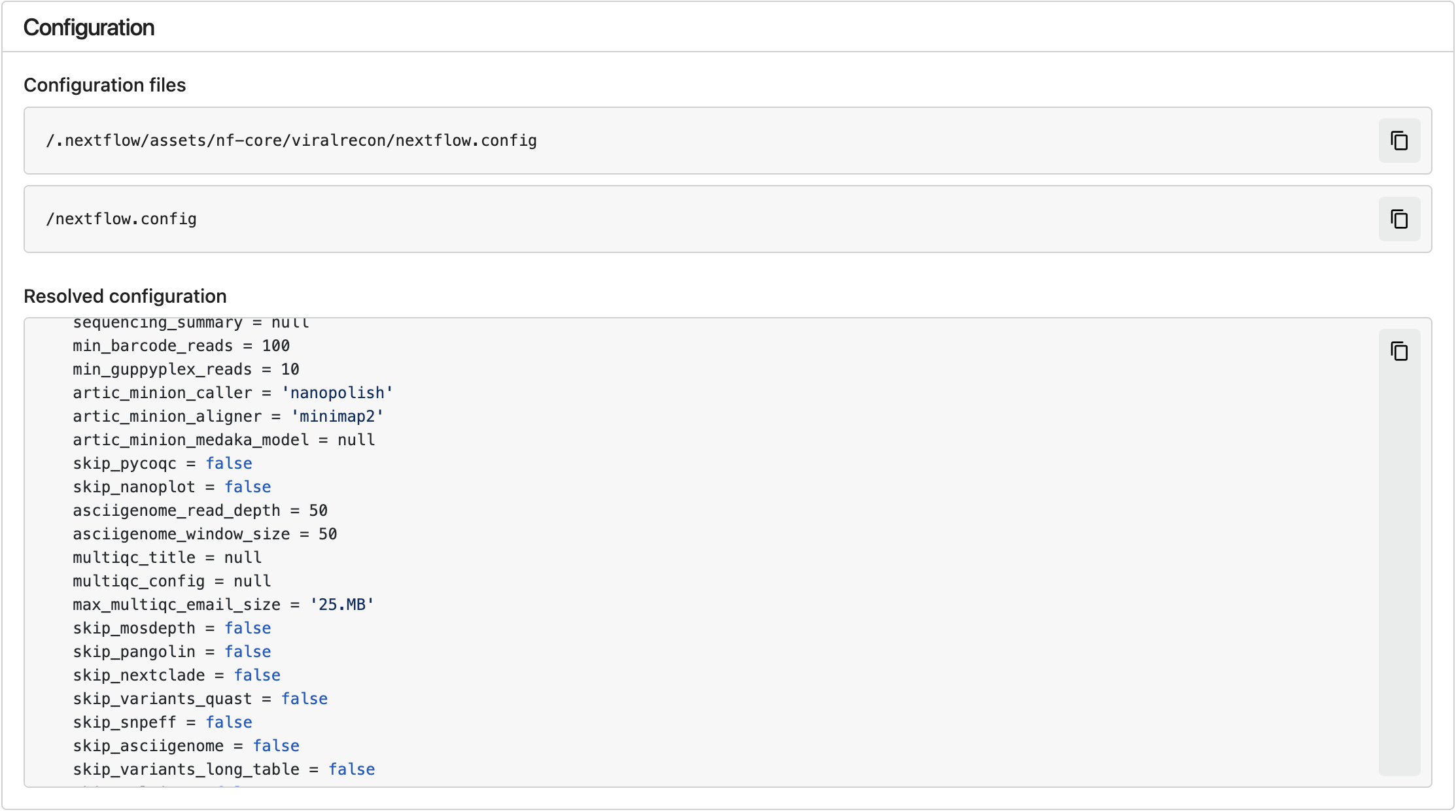
The Configuration window displays the locations of the Nextflow configuration files used for the run, and the resolved configuration resulting from those configuration files.
Command

The Command window displays the Nextflow command used for the run.
The Inputs tab consolidates the pipeline parameters and the input files used by the run.
Parameters
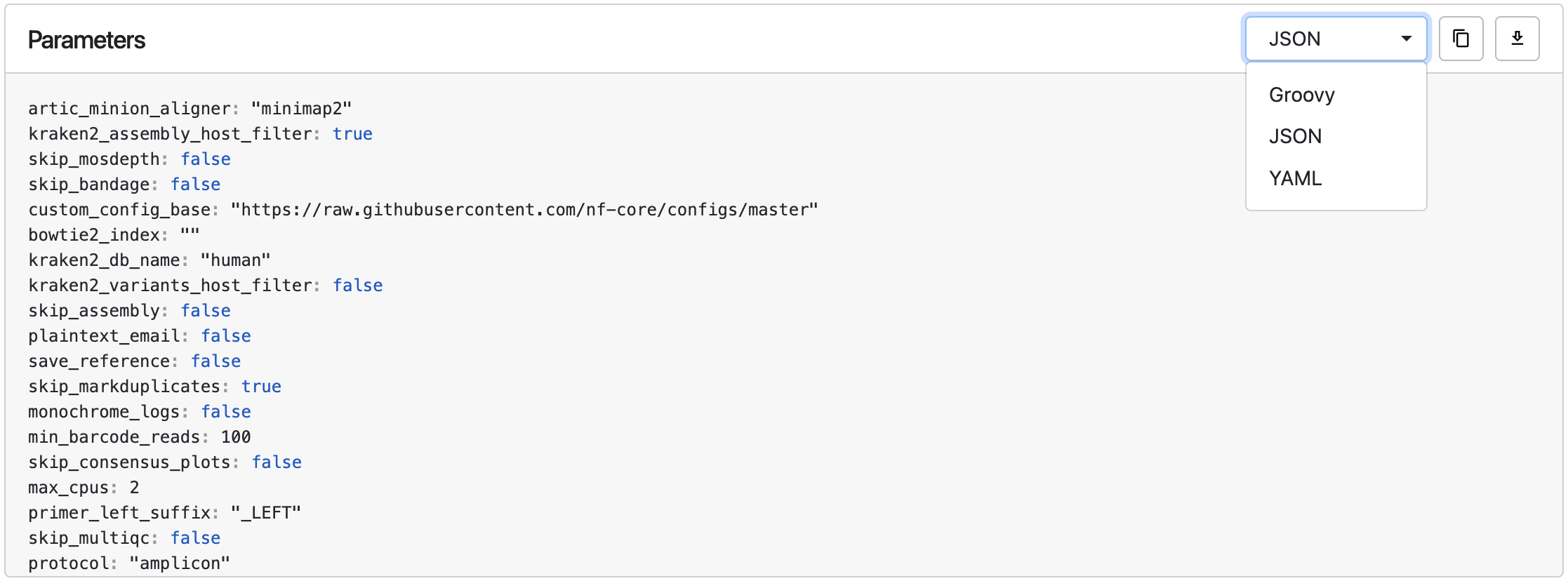
The Parameters window displays the pipeline parameters configured for the run, with options to view, copy, or download the parameters in Groovy, JSON, or YAML format.
Input files
The Input files table displays every dataset, file, and collection that was used as input for the run:
| Column | Description |
|---|---|
| Input Name | Display name of the input. Select the name to open the file in Data Explorer or in the corresponding Dataset. |
| Type | Lineage type, such as Collection or Path. |
| File Path | Full path to the input. The path is truncated; hover for the complete path. Select the path to open it in Data Explorer. |
| Lineage ID | Lineage ID (LID) of the input's lineage record. Only populated when lineage tracking is enabled. |
| Lineage Labels | Lineage labels assigned to the input. Each label is a clickable link that navigates to the lineage record for that label. |
If the run was not launched with any input files or datasets, the table is empty.
The Outputs tab links to every file the run published to its output directory:
- Reports — The named report files configured for the run, such as the MultiQC report or any reports declared in
tower.yml.
Reports
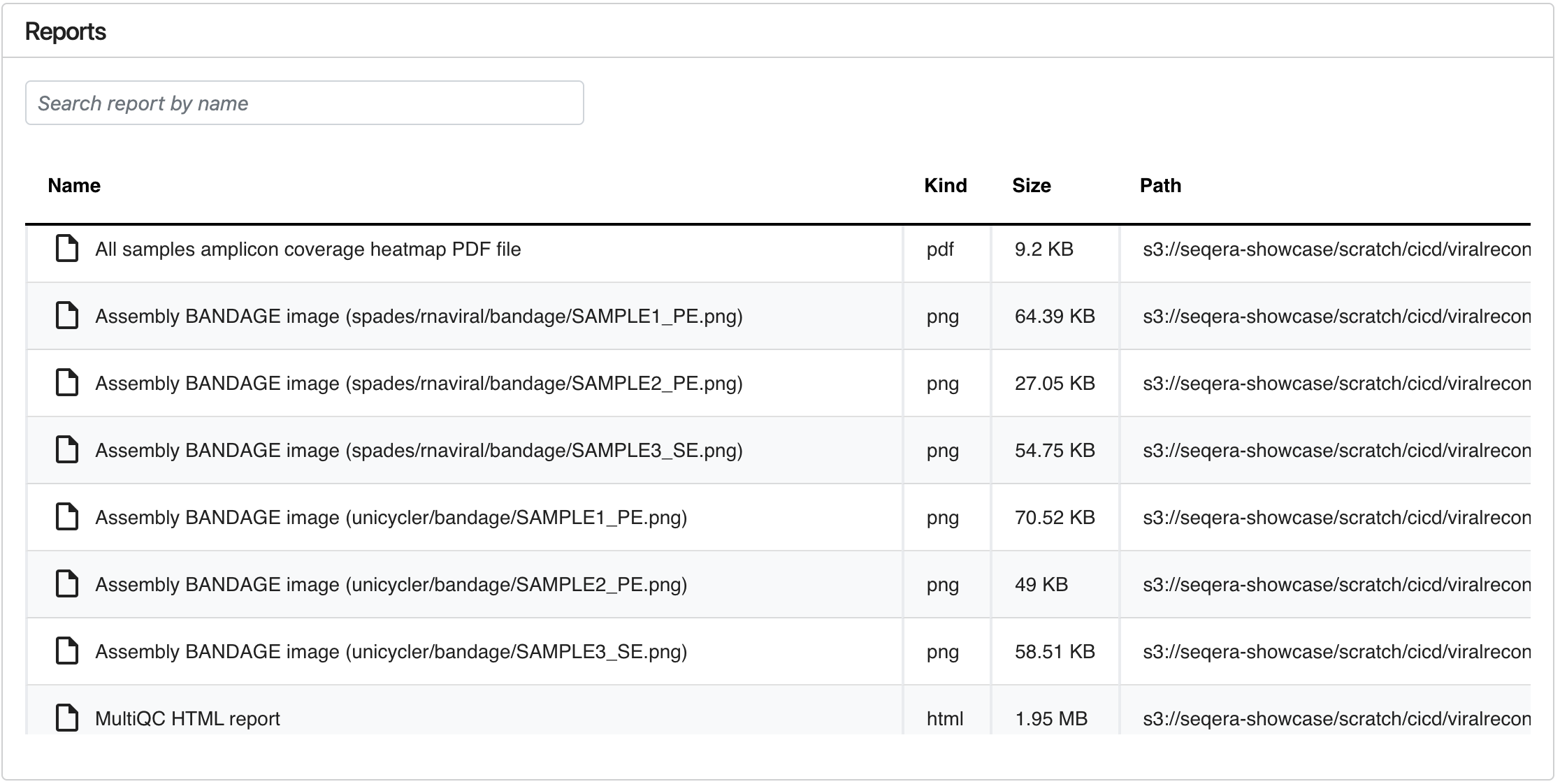
The Reports sub-tab contains a table with the names, details, and paths to all reports generated by the run, if any were configured. Select a report to open a Data Explorer file preview of the report, with options to open the report in a new tab or download it.
The containers feature is only available from Nextflow 25.03.1-edge.
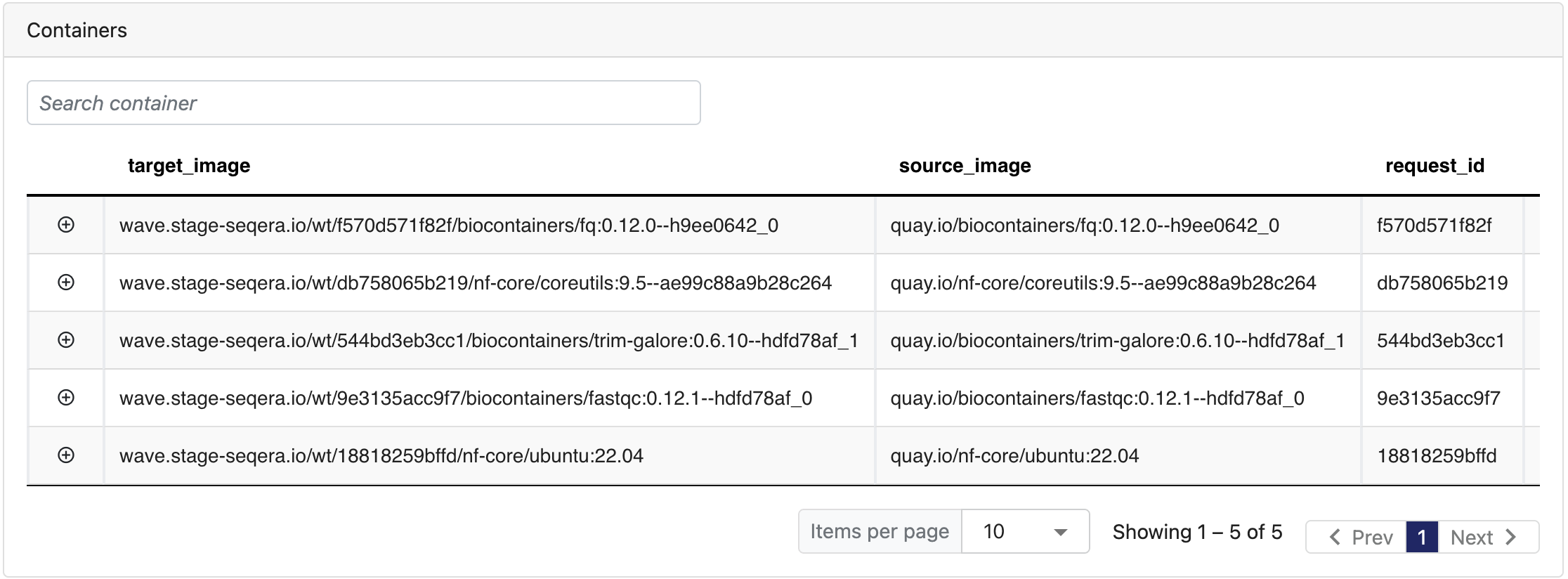
The Containers tab displays the details of containers used in the run, if any. Container details shown include:
- Target image: Container image used to execute the task.
- Source image: Container image specified in the workflow configuration, if available.
- Request ID: Unique request ID associated with the container.
- Request time: Timestamp when the container request was made.
- Build ID: Unique build ID assigned when the container was provisioned, linked to the Wave container build report.
- Mirror ID: Unique mirror ID assigned when the container was copied between repositories, linked to the Wave mirror report.
- Scan ID: Unique scan ID for the vulnerability security scan of the container, linked to the Wave scan report.
- Cached: Indicates if the container was built during a previous request.
- Freeze: Indicates if the container was provisioned for persistent storage using Wave freeze mode.
The Run Info tab contains at-a-glance details about the run, infrastructure, and executor. When lineage tracking is enabled, it also displays lineage information. Hover over the information icon next to a card's name to view a value description. Select the icons next to any run detail values to copy them.
Run details
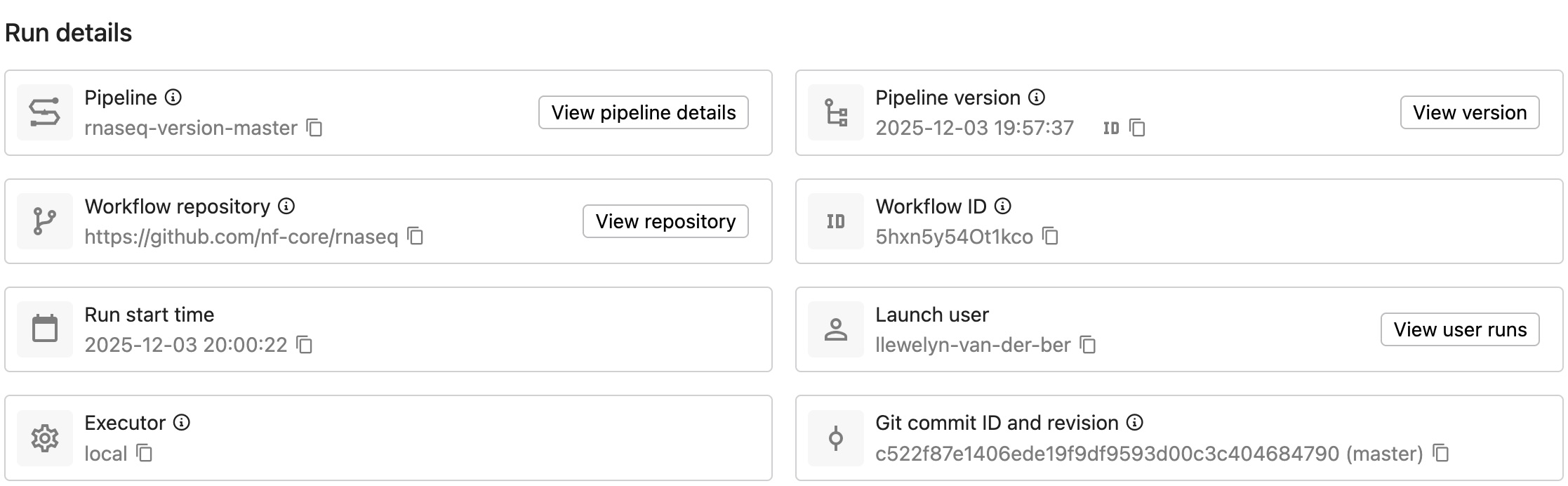
The Run details view displays basic run details:
- Pipeline name. Select View pipeline details to navigate to the pipeline details page.
- Pipeline version information. Select View version to navigate to the pipeline details page.
- Workflow repository. Select View repository to navigate to the pipeline Git repository.
- Run ID.
- Run start time.
- Total run duration.
- Launch user. Select View user runs to view a list of the launch user's runs in the same workspace.
- Executor(s) used for the run (AWS Batch, Azure Batch, etc.).
- Revision and Git commit ID. The pipeline version and Git commit ID associated with the version used for the run.
Infrastructure details
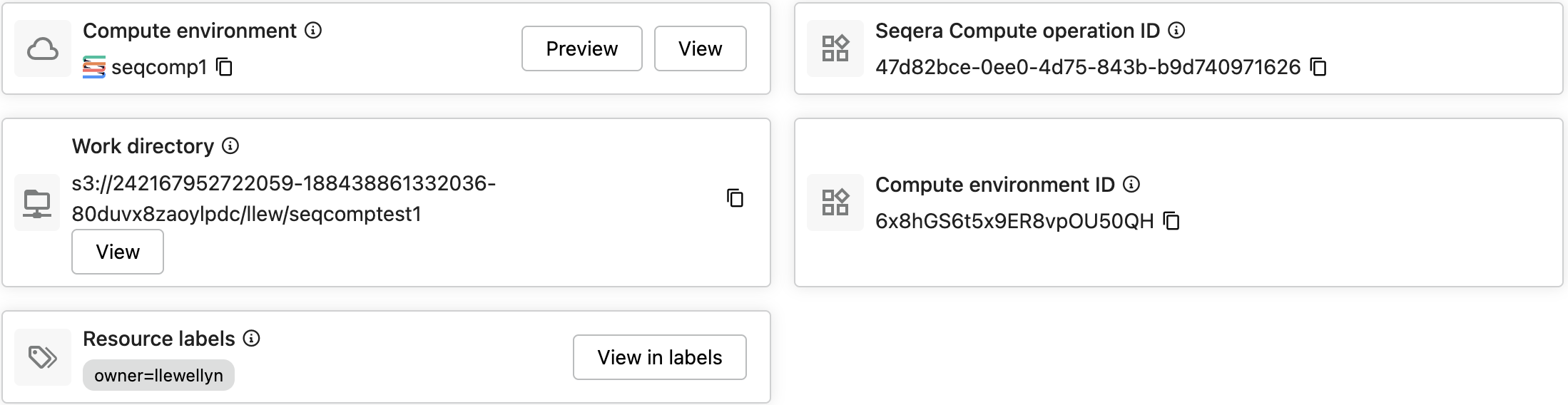
The Infrastructure details view displays compute environment and work directory information:
- Compute environment name. Select Preview to view a window with basic compute environment details, or View to navigate to the compute environment page.
- (Provider) operation ID. The unique identifier for the task submitted to the cloud provider or compute platform, such as an AWS Batch operation ID.
- Work directory. Select View to browse the work directory in Data Explorer.
- Compute environment ID.
Executor(s) details

View run executor details:
- The Nextflow version and Nextflow session ID for the run.
- The version of Fusion used in the run, if enabled.
- Whether the run used Wave (Enabled or Disabled).
Lineage
When the run was executed with data lineage tracking enabled, the Run Info tab displays a Lineage view that exposes the workflow run's lineage record. Select a Lineage ID or lineage label to navigate to the corresponding lineage record.
Seqera Platform labels and Nextflow lineage labels are distinct entities. Both propagate to the lineage record and are namespaced for clarity. Resource Labels are intentionally excluded.
- Platform labels (set via the Labels interface) are mutable.
- Lineage labels (set via the Nextflow
labeldirective) are immutable.
Editing a Platform label after a run has completed does not retroactively update the corresponding lineage record.
| Field | Source | Description |
|---|---|---|
| Lineage ID | LID | Lineage ID (LID) of the workflow run's WorkflowRun record. Select the LID to navigate to the lineage record for the run. |
| Lineage Labels | labels | Lineage labels assigned to the run. Each label is a clickable link to the lineage record for that label. |
| User ID | platform.user.id | Seqera Platform user ID of the user who launched the run. |
| User Name | platform.user.userName | Seqera Platform user name of the user who launched the run. |
| Workspace ID | platform.workspace.id | Seqera Platform workspace ID where the run was launched. |
| Workspace Name | platform.workspace.name | Seqera Platform workspace name where the run was launched. |
| Workspace Org | platform.workspace.organization | Parent organization name of the workspace. |
| Compute Env | platform.computeEnv.id | Seqera Platform compute environment ID used for the run. |
| Compute Env Name | platform.computeEnv.name | Seqera Platform compute environment name. |
| Compute Env Platform | platform.computeEnv.platform | The compute environment platform (for example, aws-cloud). |
| Pipeline ID | platform.pipeline.id | Seqera Platform pipeline ID. |
| Pipeline Name | platform.pipeline.name | Seqera Platform pipeline name. |
| Pipeline Revision | platform.pipeline.revision | Pipeline revision used for the run. |
| Pipeline Commit ID | platform.pipeline.commitId | Pipeline Git commit ID used for the run. |
Empty and error states
| Condition | Behavior |
|---|---|
| Lineage was not enabled for this run | The Lineage view is hidden. A note reads: "Lineage tracking was not enabled for this run. Add lineage.enabled = true to your Nextflow config to capture lineage data, or toggle lineage on in the launch form." To make lineage the default for all runs in this workspace, configure Workspace settings → Lineage and enable Enable lineage by default. |
| Lineage was enabled but no records were found | The Lineage view displays: "No workflow lineage records found for this run." The Inputs, Outputs, and Tasks tabs each display the equivalent message for their record type. |
| The lineage indexer is unavailable | The Lineage view displays an error state with a retry action. |